
Promote a partner with a sponsored box and a discount code your readers can copy with one click.
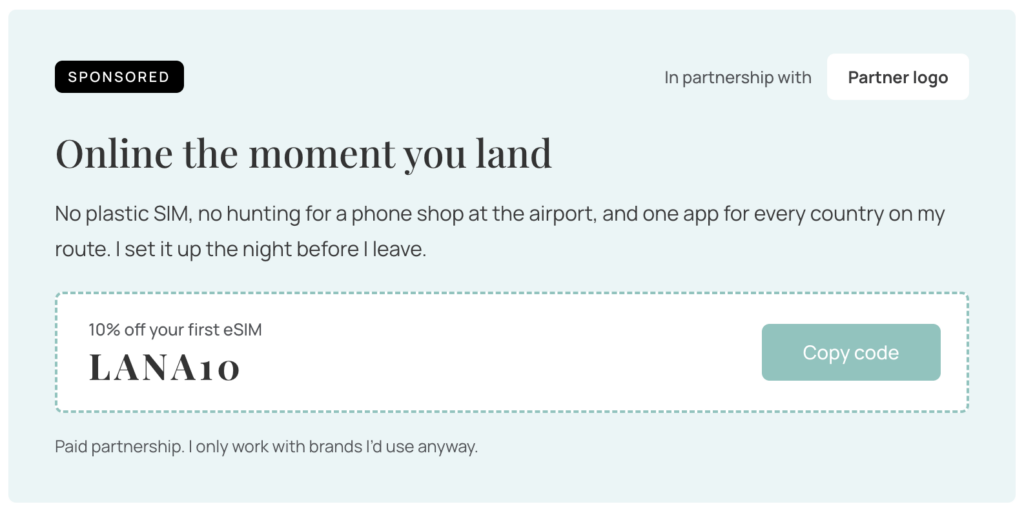
Adding the Discount Code Box
- Open a post or page and click the + button in the top toolbar.
- Switch to the Patterns tab and choose Makai.
- Click Discount code box to insert it.
On phones, the Copy code button moves under the code and fills the width. The pattern is copied into your post, so your changes never affect other posts.
Editing the Box
- Sponsored label: The small black label at the top. Keep it on paid partnerships so readers can see right away that the box is sponsored. You can change the word, for example to “Ad.”
- Partner logo: Click the logo and choose Replace. Wide logos with a transparent background work best, for example a 240 × 60 px PNG.
- Title and text: A short headline and a sentence or two about why you use the product.
- Offer: The small line above the code, such as “10% off your first eSIM.”
- Code: Type your discount code exactly as readers should enter it. The Copy code button copies exactly what’s written here.
- Note: The line at the bottom says the box is a paid partnership. Keep it, or replace it with your own disclosure.
Linking to the Partner
The logo links to your partner’s website:
- Click the logo and then the link icon in the image toolbar.
- Enter the partner’s address.
- In the link settings, enter
sponsored nofollowin the Link rel field. The pattern sets this for you.
The Copy Code Button
Clicking Copy code copies the code to the reader’s clipboard, and the button shows “Copied!” for two seconds. You can change the button text, but the button doesn’t need a link.
The copying only works on your site, not inside the editor. To test it, preview or view your post and paste the code somewhere.