
A stylish product grid for showcasing affiliate products.
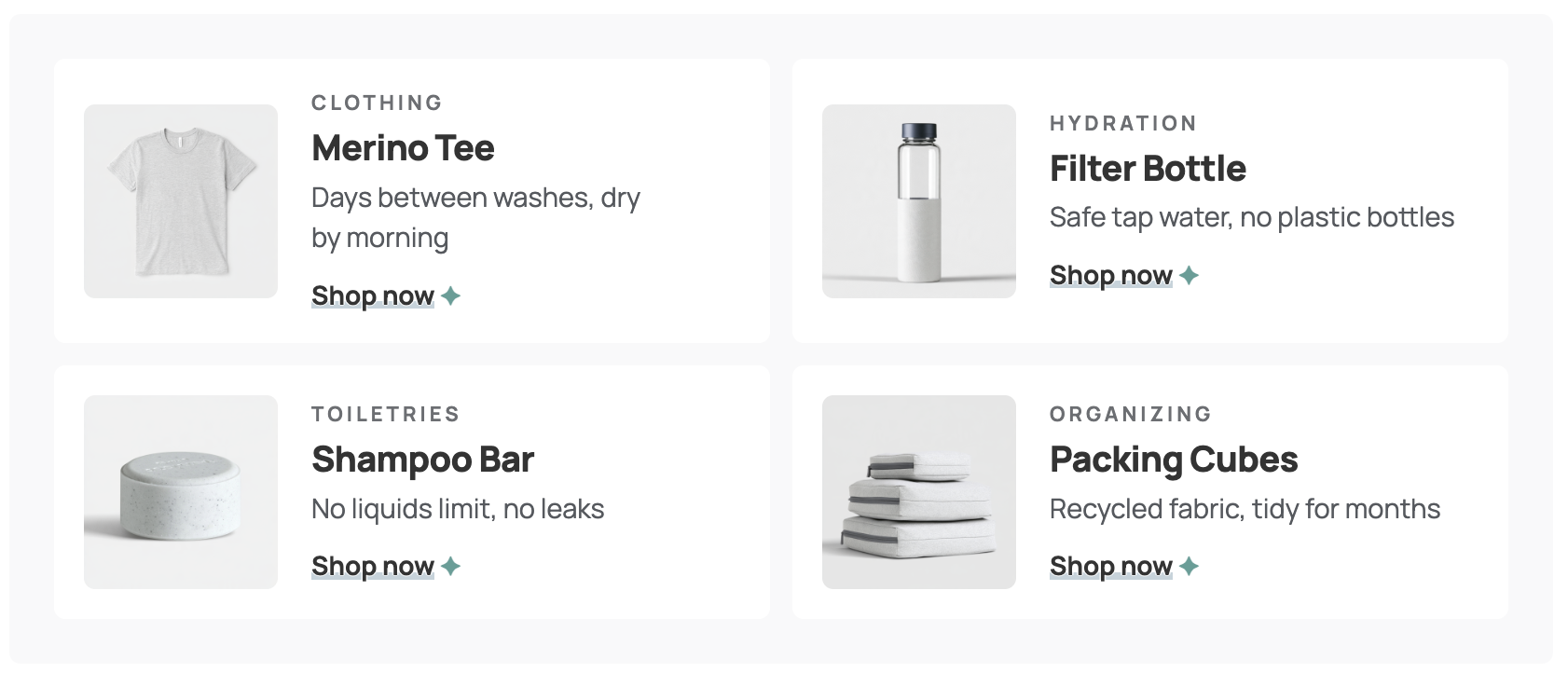
Adding the Product Rows
- Open a post or page and click the + button in the top toolbar.
- Switch to the Patterns tab and choose Makai.
- Click Product rows to insert them.
The rows sit in two columns and stack into one column on phones. The pattern is copied into your post, so your changes never affect other posts.
Editing a Row
- Image: Click the image and choose Replace. Square images work best, for example 600 × 600 px.
- Label: The small grey category above the name, such as “Clothing” or “Toiletries.”
- Product name: A heading. Keep it short, so it fits on one line.
- Short line: One sentence about why you carry it.
- Shop link: Click “Shop now” to add your link and change the text. The image links to the same product. Click the link icon in the image toolbar to set its link. Click the button to add your link. The ✦ marks the button as an affiliate link. If you remove it and want it back, paste a ✦ at the end of the text, select it, open the More menu and choose Superscript, then Highlight and pick a text color..
Marking Affiliate Links
- Select the “Shop now” link. It’s a button with the Text link style.
- In the block settings, open Advanced and check that Link rel says
sponsored nofollow. The pattern sets this for you. - For the image, click the link icon in the image toolbar and enter
sponsored nofollowin the Link rel field of the link settings.
The small ✦ after the link marks it as an affiliate link for your readers. It’s typed in by hand, so remove it from links that aren’t affiliate links. To add it to a new link, copy it from an existing row or from here: ✦. Keep a short disclosure near the top of your post as well.
Adding or Removing Rows
- To add a row: Open the Document Overview (the list icon in the top toolbar), select a row’s Group, click the three dots in the block toolbar and choose Duplicate.
- To remove a row: Select its Group the same way and choose Delete.
The rows fill the grid two per line. An even number of rows keeps both columns level.
Using the Text Link Style Elsewhere
Any button can look like an underlined link. Select the button, open Styles in the block settings and choose Text link. It works well for a secondary link next to a main button.