
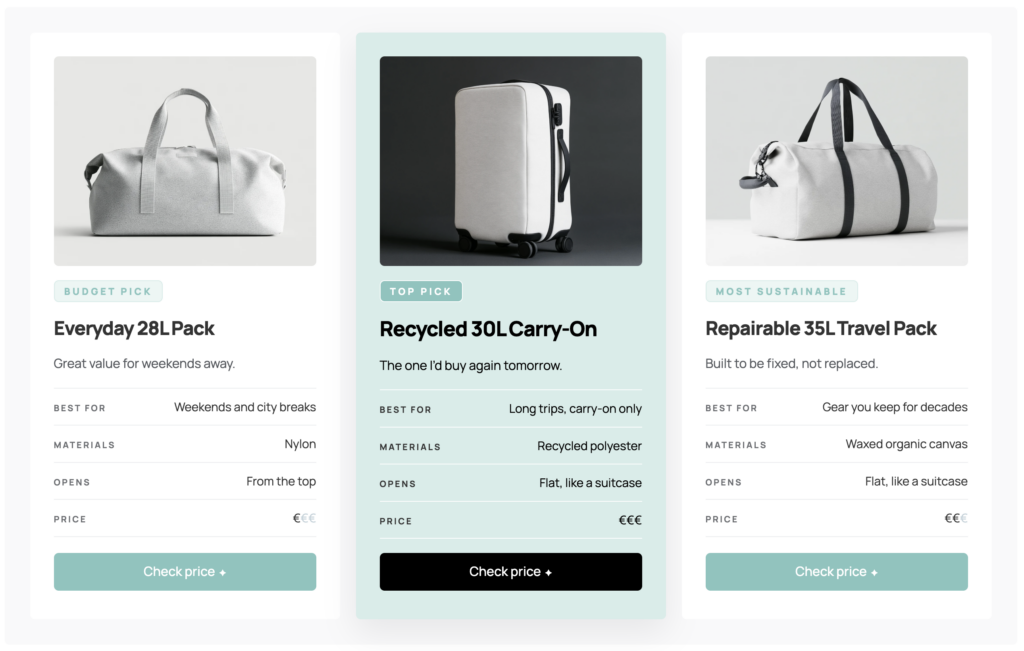
Compare up to three products side by side, with your favorite highlighted as the top pick. Perfect for gear guides, packing lists and “best of” posts, with affiliate buttons built in.
Adding the Comparison Cards
- Open a post or page and click the + button in the top toolbar.
- Switch to the Patterns tab and choose Makai.
- Click Comparison cards to insert them.
The cards use the wide width, so three fit side by side. On phones they stack, with your top pick shown first. The pattern is copied into your post, so your changes never affect other posts.
Editing a Card
Each card is made of regular WordPress blocks, so you edit it like any other content:
- Image: Click the image and choose Replace. Landscape images in a 5:4 ratio work best, for example 1200 × 960 px.
- Badge: The small label above the name, such as “Top pick” or “Budget pick.” Click it and type your own.
- Product name and verdict: A heading and one short line. Keep the verdict to one sentence.
- Specs: Each row is a list item. Write the label in bold, then the value, for example: Best for Weekends and city breaks. The label lines up on the left and the value on the right. Press Enter to add a row.
- Price: Use € signs for the price level. To fade the unused ones, select them, open the More menu (the arrow in the block toolbar), choose Highlight and pick a light grey text color.
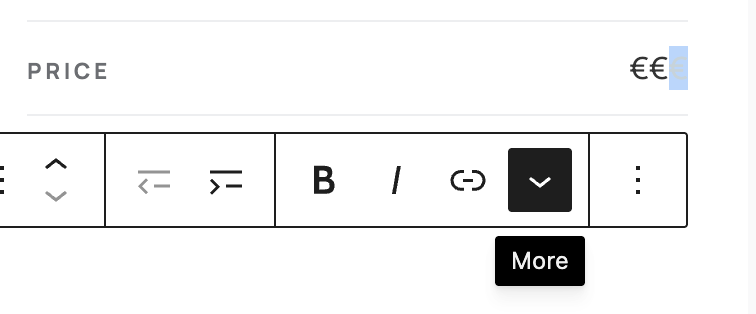
- Button: Click the button to add your link. To change the text, click just before the ✦ and type, so the star stays in place. The ✦ marks the button as an affiliate link. If you remove it and want it back, paste a ✦ at the end of the text, select it, open the More menu and choose Superscript.
Changing the Top Pick
The mint card is a column with the Featured card style. To feature a different product:
- Open the Document Overview (the list icon in the top toolbar) and select the Column of the product you want to feature.
- In the block settings on the right, open Styles and choose Featured card.
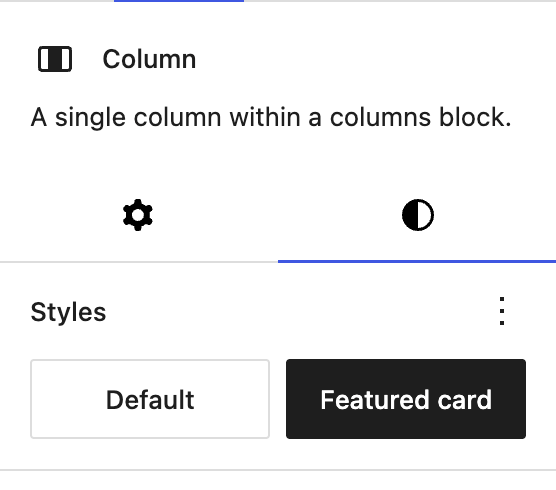
- Select the previous top pick’s column and set it back to Default.
- Update the badge texts to match.
Two Cards Instead of Three
Select the column you don’t need, click the three dots in the block toolbar and choose Delete. The remaining cards resize to fill the space.
Using the Badge and Specs Styles Elsewhere
The Badge style for paragraphs and the Specs style for lists work anywhere. Select a paragraph or list, open Styles in the block settings and choose the style.